How to place an order
The complete checkout, from choosing an amount to paying.
This guide walks through a full order. It takes about three minutes.
Before you begin
- A Scarnox account (sign in with Discord)
- Pokémon you can list on the Pokétwo market, one listing per 25M of coins
- A wallet or exchange account to pay from
Checkout at a glance
| Step | What you do |
|---|---|
| 1. Amount | Choose how many Pokécoins you want |
| 2. Market IDs | Create your listings and paste their IDs |
| 3. Payment | Pick a payment method and place the order |
You can switch between USD and INR prices in the top bar at any time before paying.
Step 1: Choose your amount
Open Buy Pokécoins from the homepage or New order from your dashboard.
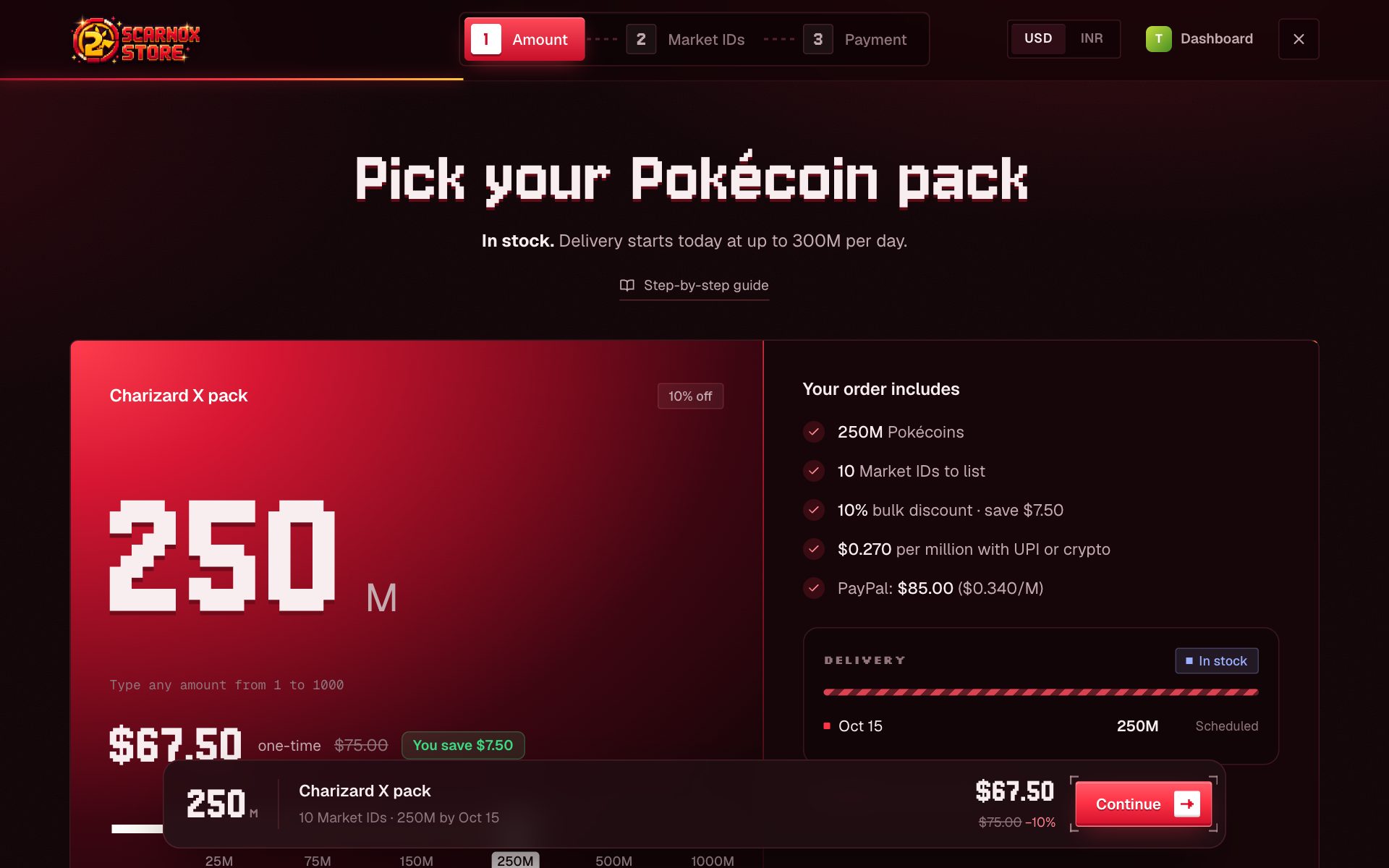
Set the amount any way you like:
- Type it in the amount box (whole millions, 1M to 1000M)
- Drag the slider
- Tap a pack (Pichu 25M, Eevee 75M, Lucario 150M, Charizard X 250M, Rayquaza 500M, Arceus 1000M)
The price, discount and delivery date update live. Bigger orders get a lower rate automatically, and when you're close to the next discount, checkout tells you how much more unlocks it.
Click Continue. If you're not signed in yet, you'll be asked to sign in with Discord first.
Continuing creates your invoice and holds today's price for 24 hours. If you leave, you can pick up where you stopped from Incomplete orders on your dashboard.
Step 2: Add your Market IDs
We deliver by buying Pokétwo market listings you create. Checkout shows one row per listing, each with the exact price to list at.
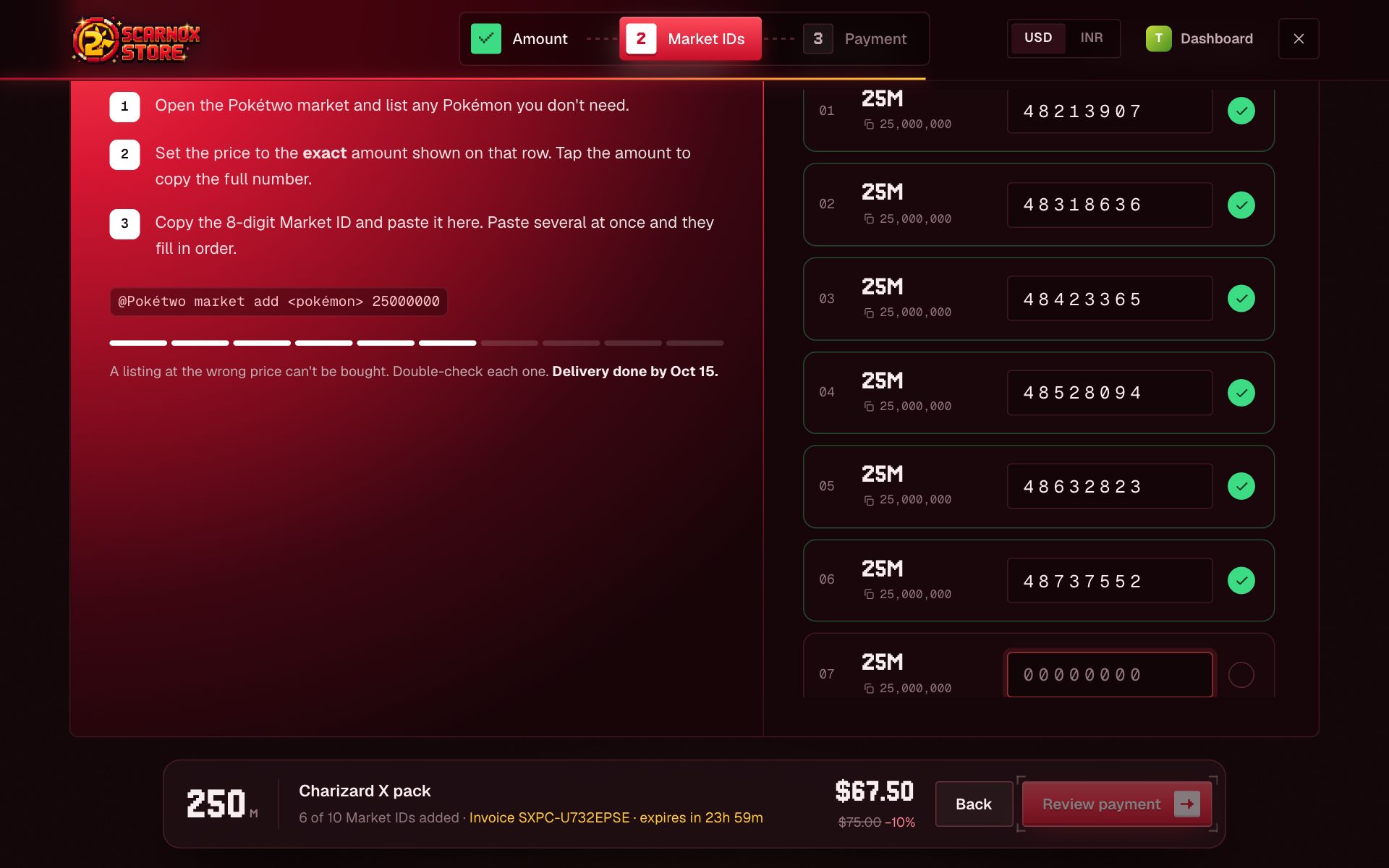
For each row:
- List any Pokémon on the market at the price shown on that row (tap the price to copy it)
- Copy the 8-digit Market ID Pokétwo gives you
- Paste it into the row
Pasting several IDs at once fills the rows in order. The full walkthrough, with commands, is in Market IDs.
A listing priced even one coin off can't be bought. Double-check each price before continuing.
Step 3: Choose how to pay
Pick a payment method. Each option shows the exact total it will charge, and there are no processing fees.
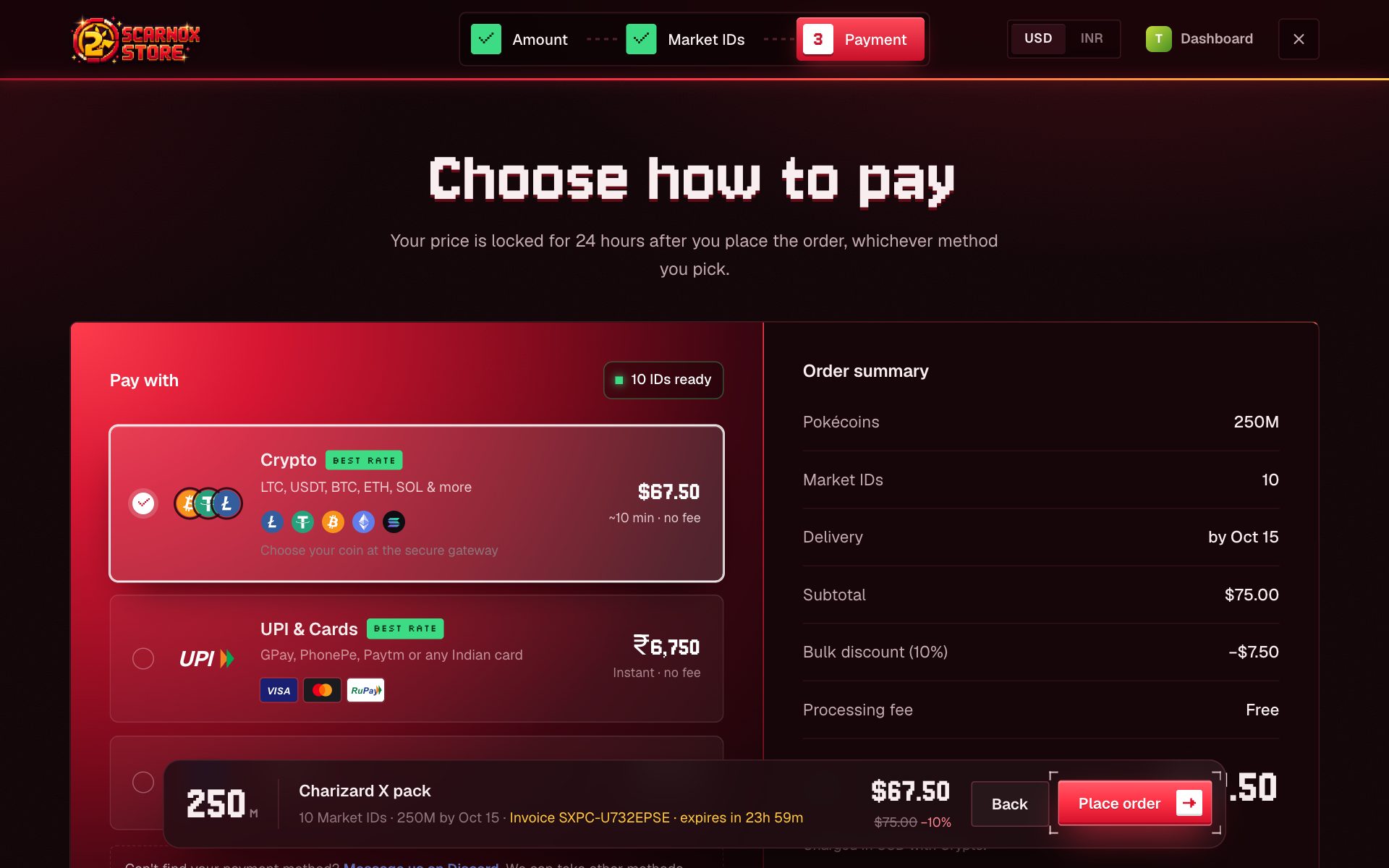
Add the email where you want your receipt, then click Place order. Your order page opens with the payment window ready. See Payment methods for what each method looks like.
Don't see the method you want? Message us on Discord. We can take other methods manually and confirm your order by hand.
Step 4: Pay
For crypto, choose a coin and network, then send the exact amount shown to the address on screen. The page updates by itself as soon as your payment is detected and confirmed. Step-by-step: Pay with crypto.
After you order
Once payment confirms, your order shows Awaiting delivery with an estimated delivery date, and you get a receipt with a PDF invoice by email.
- Watch delivery live on your order page
- Keep your listings up until they're bought
- You'll get an email when delivery starts and when everything is delivered
Troubleshooting
I paid but the order still says Awaiting payment
Crypto payments need blockchain confirmations first. The order updates on its own, usually within minutes. If it hasn't changed after 30 minutes, open a ticket with your order ID.
I closed the page before paying
Open your dashboard. Unpaid invoices appear under Incomplete orders with a Resume or Pay now button. They're held for 24 hours.
I entered a wrong Market ID
You can change any listing that hasn't been delivered yet. See Fix a Market ID.